Assignment Borders
A plain, neat line of the kind many teachers expect on handed-in work.
- School assignments
- College projects
- Lab records
- Homework

Put a clean border around your PDF pages in seconds. Pick a design, a colour, the line style and the margins, see it on your page, then download. Free, and your file never leaves your device.
Drop a file here
PDF file · read on your device, never uploaded
No PDF to hand?
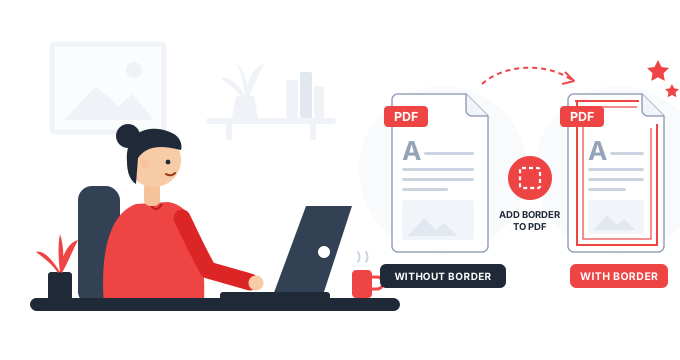
A border makes a plain page look finished. Students add one to assignments and project reports, offices use a thin frame on reports and letters, and a double gold line turns an ordinary page into a certificate.
This tool puts that border on every page, on one page, or on just the pages you choose. Set the colour, the thickness, the line style and the space from each edge, and watch the result on your own page while you change it. You can even drag the border into place with your mouse or finger.
There is nothing to install and no account to make. Everything happens inside your browser, so even a private document stays on your computer or phone.
No software to install Free Works on any device
Follow these steps. The pictures are from the tool at the top of this page.
You are already on it. The tool works in any modern browser: Chrome, Edge, Firefox or Safari, on a computer, tablet or phone.
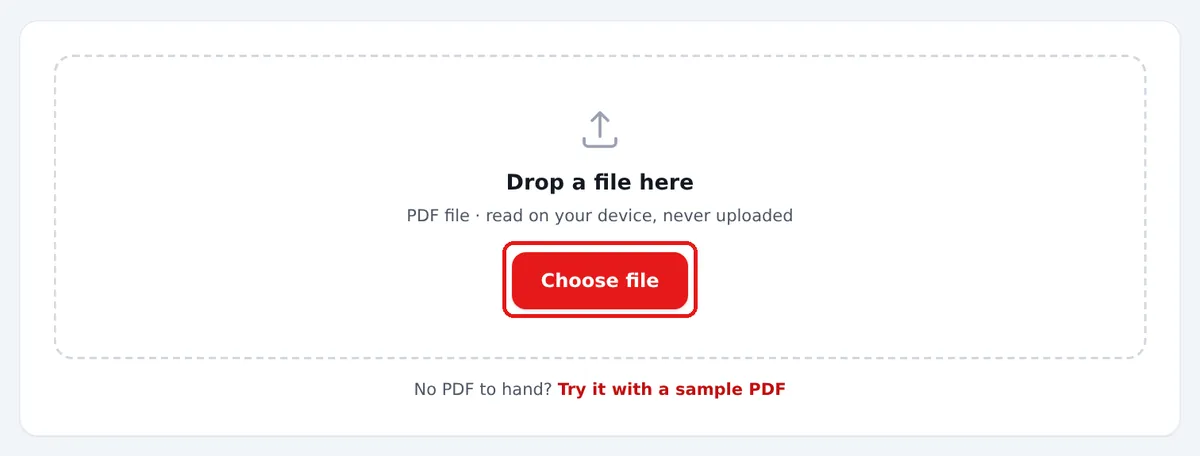
Press Choose file, or drag the PDF onto the box. The first page appears straight away with a border already on it.
Good to know:
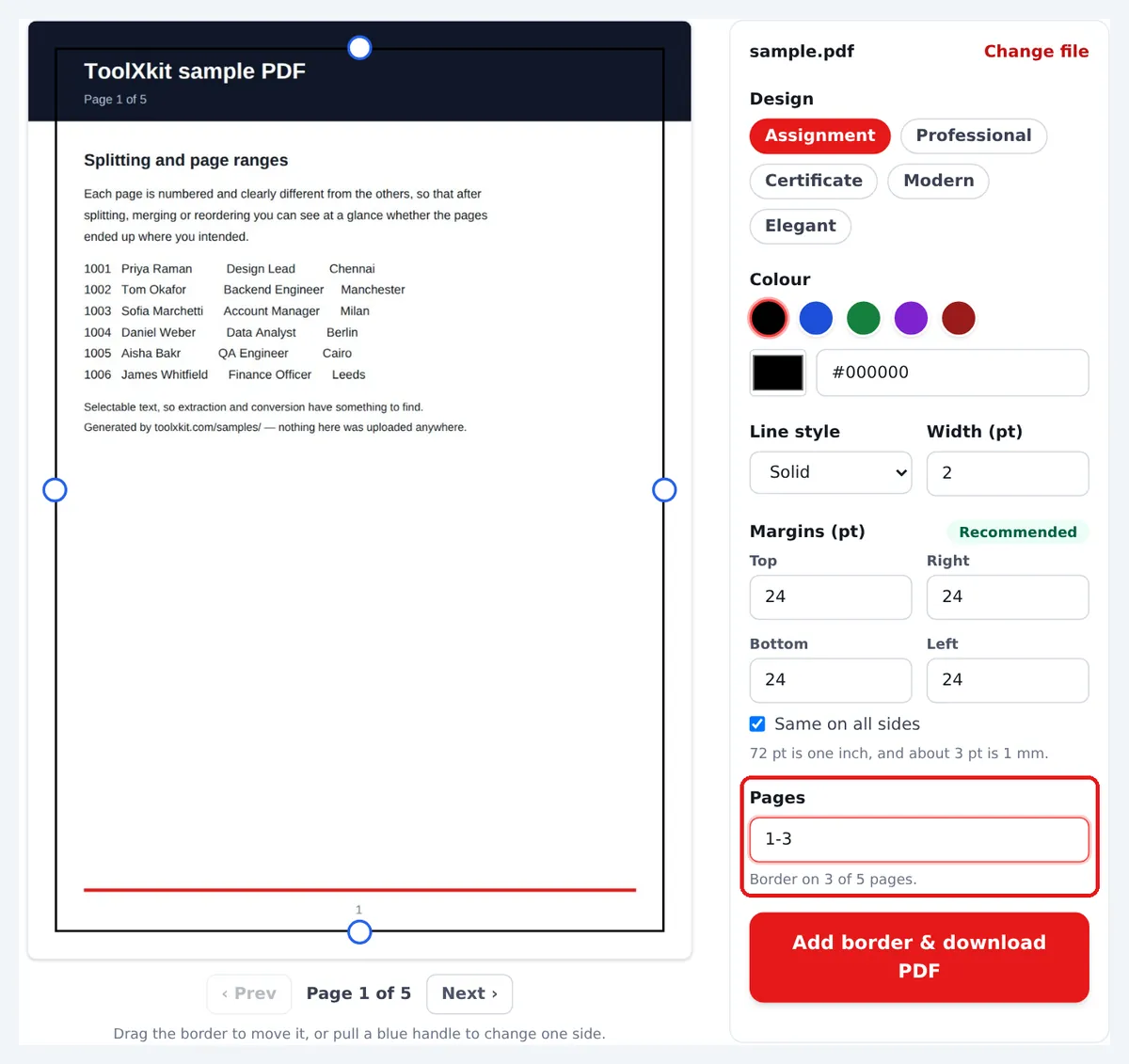
Type the pages that should get a border in the Pages box.
Examples:
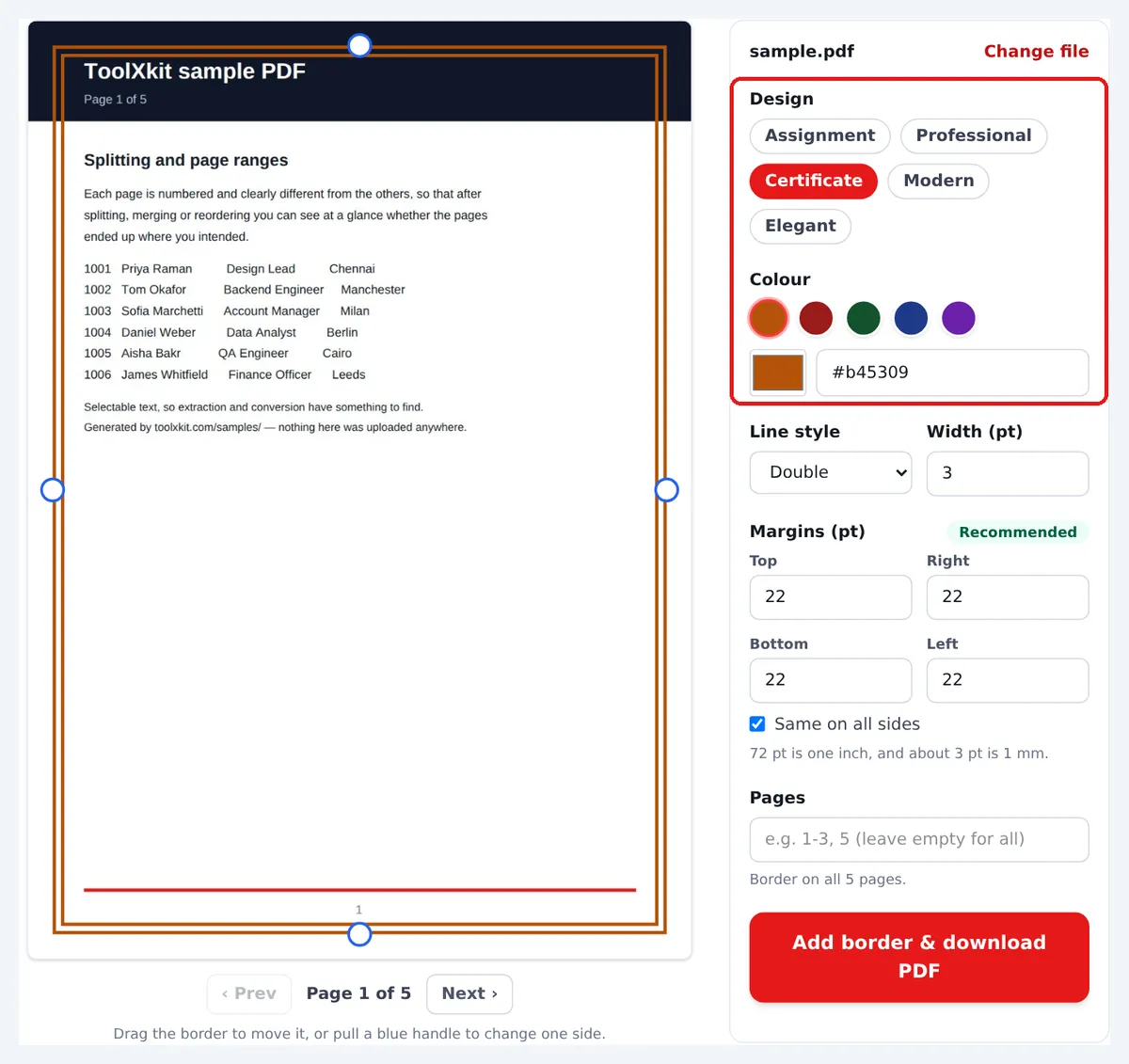
Start from one of five ready-made designs. Each one sets a sensible colour, line and margin, and you can change anything afterwards.
Designs:
Fine-tune the border until it suits your document.
SolidDashedDottedDouble
What you can change:
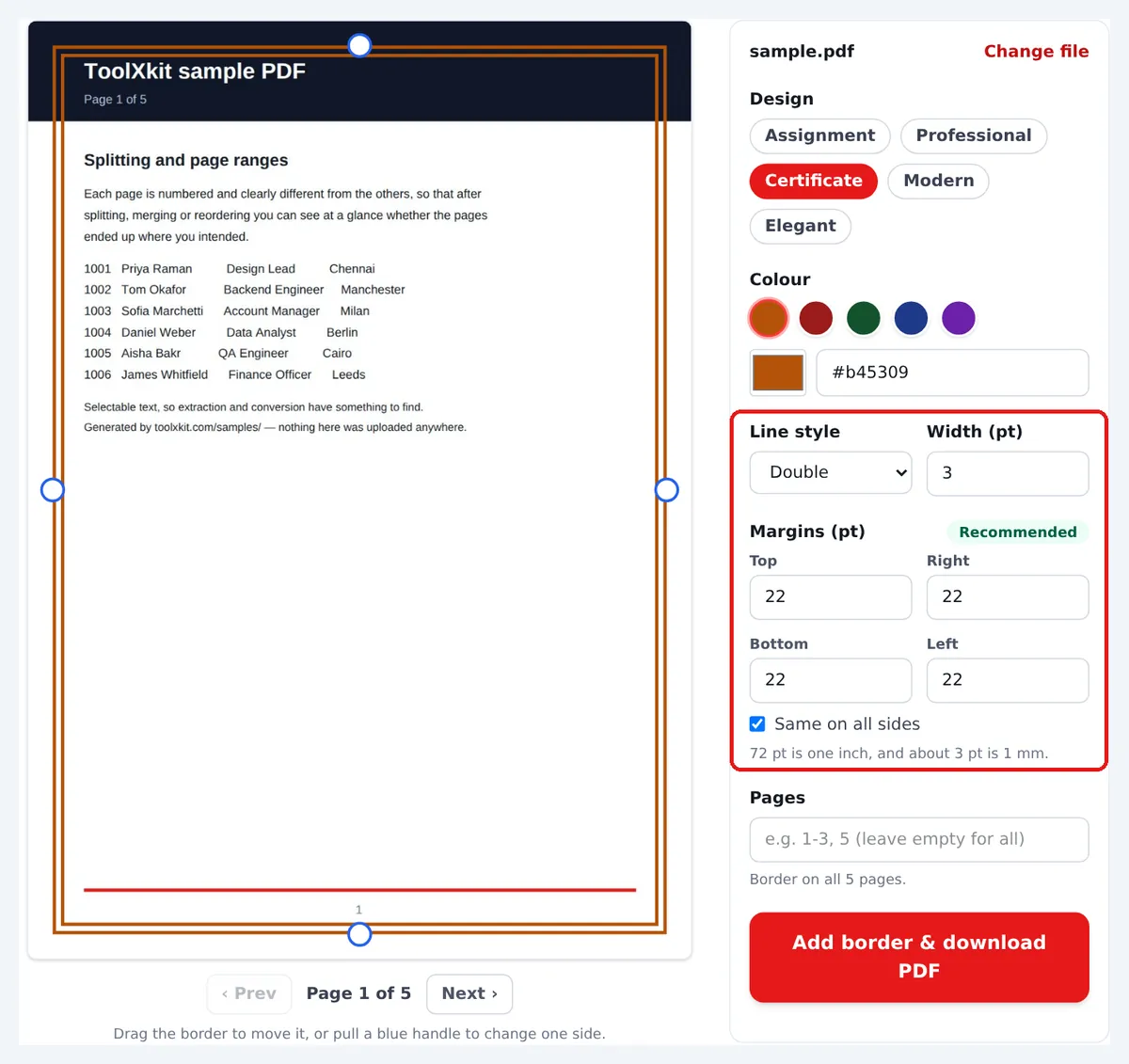
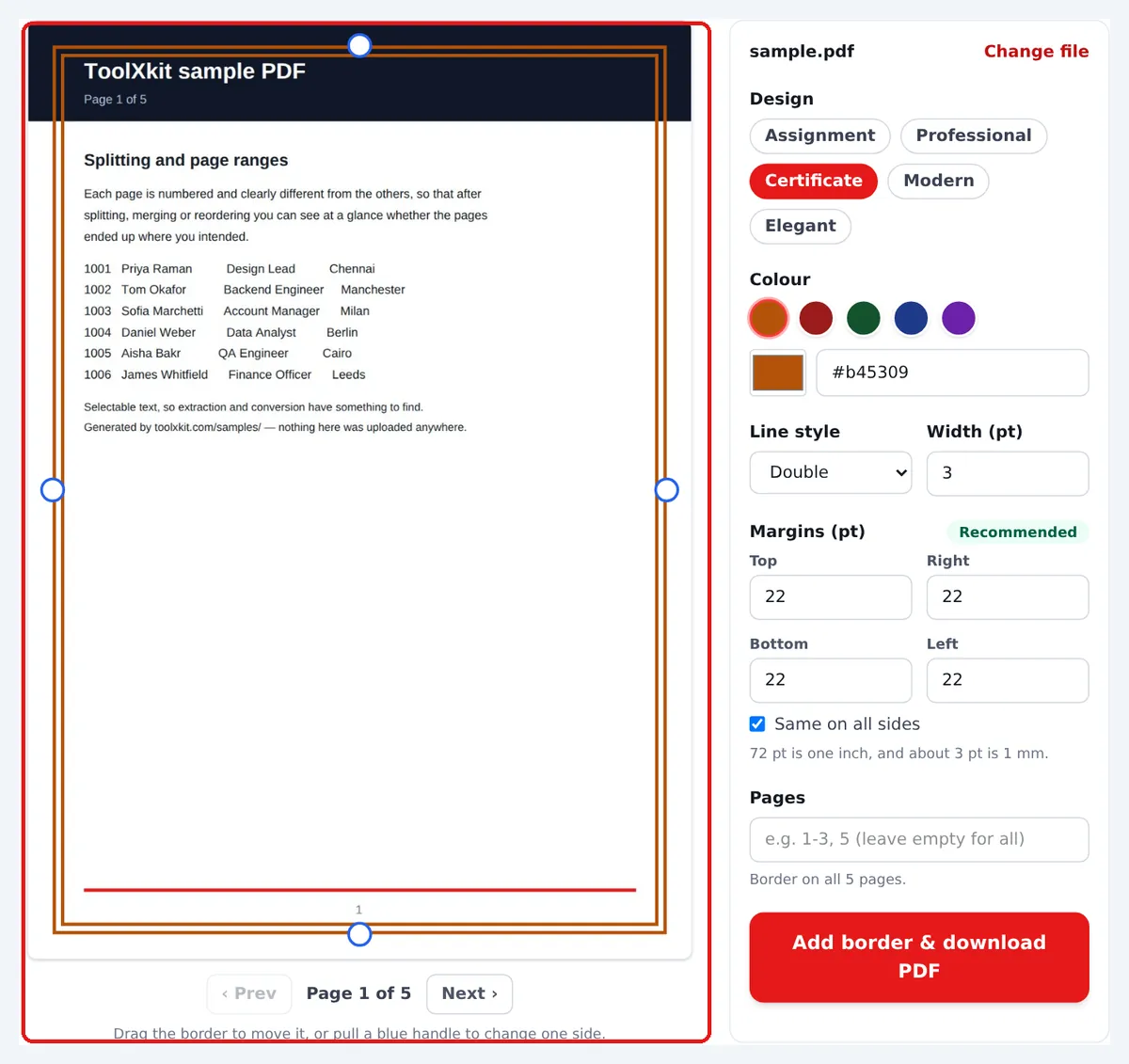
The page on the left shows exactly what you will get. Drag the border to move it, or pull a blue handle to change one side. Use Prev and Next to look at other pages.
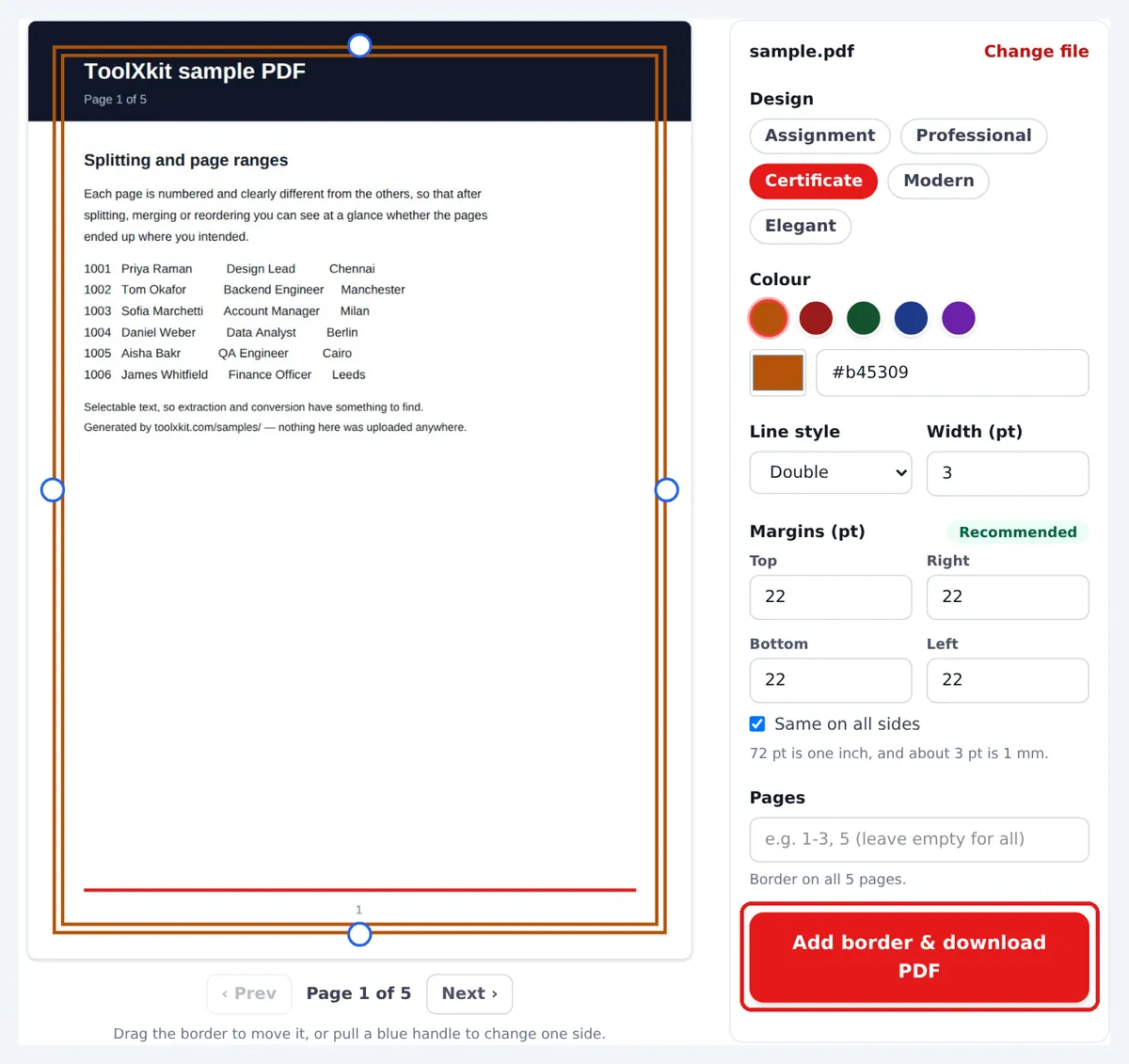
Press "Add border & download PDF". The new file is saved to your downloads with "-border" added to its name, and your original file is not changed.
A PDF border is a line or frame drawn around the content of a page. It can be a single thin line, a dashed or dotted line, or a double line like the ones on certificates.
The border becomes part of the page, so it shows in every PDF reader and on paper when you print. It sits around your text and pictures and does not change them.
PDF File
.PDFA frame around your content, from a simple line to a certificate-style double border.
A border takes a few seconds and makes a page look cared for. It gives the eye an edge to rest on and shows where the page begins and ends, which helps most when a document is printed or shown on a projector.
“A border is one of the cheapest ways to make a page look finished.”
From homework to certificates, these are the jobs people most often use it for.
Everything about the border is yours to choose.
Pick one of the suggested colours for each design, or choose any shade with the colour picker.
Type a colour code such as #0f172a to match a logo or brand colour exactly.
Put the border on one page, a run like 2-5, a list like 2, 4, 6, or the whole PDF.
Go from a hairline 0.5 pt to a bold 40 pt frame.
Suitable for:
Set the space from each edge on its own, or keep all four the same.
Set a margin for:
Move the whole border, or pull one side, directly on the preview.
Works on:
Five designs, each made for a kind of document. Pick one and it opens in the tool above, ready for your file.
A plain, neat line of the kind many teachers expect on handed-in work.
A thin, quiet frame in navy or grey. It frames the page without pulling attention from the text.
Two strong lines in gold, maroon or green, the classic look of an award.
A bold band of colour close to the edge, for pages that should look bright and current.
Two fine lines set well in from the edge. Understated and formal.
See the border on your own page while you change it, before you download anything. No guessing, no second attempts.
The PDF is opened and changed inside your browser. It is never uploaded to a server, so private documents stay private.
Choose a file, drag the border with your finger and download, all on a phone or tablet.
Type exact margins for each side, or drag the border into place by eye.
Suggested colours for every design, a colour picker, and exact colour codes.
The border is added as a clean line. Your text stays crisp and can still be selected and searched.
Most PDFs are ready in a second or two, because nothing has to travel over the internet.
No signup, no watermark, and no limit on how many files you do.
Add the border many schools expect on assignments, records and project reports.
Frame worksheets and question papers, and make certificates for events.
Give reports, quotations and proposals a tidy look in company colours.
Make certificates of appreciation, completion and service.
Add a finishing frame to portfolio pages and client proofs.
Prepare invitations, programmes and participation certificates.
A border is worth adding when you are:
Use a thin line (1 to 2 pt) for reports and letters. Thick borders compete with the text.
Save bold and double borders for certificates and invitations.
Keep the margins equal on all sides, unless you need extra room on the left for binding.
Leave at least 20 pt (about 7 mm) from the edge if you will print. Most printers cannot print right to the edge.
Match the border colour to a logo or heading colour on the page.
If your text runs close to the edge, use a smaller margin so the border sits outside the text.
Use the Pages box to skip the cover page or blank pages.
Check a couple of pages in the preview before you download.
Answers to common questions about this tool.
Choose your PDF on this page, pick a design, adjust the colour, width and margins if you like, and press "Add border & download PDF". The new PDF downloads straight away.
Yes. Type the pages in the Pages box: 1 for the first page, 2-5 for a run, or 1, 3, 7 for separate pages. Leave it empty to put the border on every page.
Yes. Each design suggests five colours, and the colour picker lets you choose any other. You can also type a colour code like #1d4ed8 to match a brand colour exactly.
For reports and assignments, 1 to 2 pt looks neat. For certificates, 3 to 4 pt with a double line looks right. Anything from 6 pt up is a bold, poster-like frame. For scale, 3 pt is about 1 mm.
Yes. Drag the border on the preview to move it, or pull one of the blue handles to change a single side. The margin boxes update as you drag.
Four line styles, solid, dashed, dotted and double, and five ready designs: Assignment, Professional, Certificate, Modern and Elegant.
Yes. Untick "Same on all sides" and type a value for the top, right, bottom and left. This is handy when you need extra room on the left for binding.
Yes. It is part of the page, so it prints like everything else. Most printers cannot print right to the edge of the paper, so keep the margin at 20 pt or more. The Recommended button sets that for you.
Yes, completely. There is no signup, no watermark and no daily limit.
No. The PDF is opened and changed inside your own browser, and the finished file is saved straight to your device. Nothing is sent to a server, so it is safe for private documents.
Yes. It works in the browser on Android phones, iPhones and tablets. You can drag the border with your finger just as you would with a mouse.
Yes. Choose the Certificate design for a double line in gold, maroon, green, navy or purple, then set the width and margins you like.
Yes. Because the work happens on your device, the limit is your device’s memory rather than an upload limit. A PDF of a few hundred pages is usually fine on a computer. Very large files are quicker on a computer than on a phone.
No. Your text, pictures and links stay exactly as they were, and the text can still be selected. The border is drawn where you place it, so if something on the page runs very close to the edge, set a smaller margin so the line sits outside it.
Other free tools for the same kind of job.